ODBC drivers are the interface used between the program data files and the Windows printer function. We have noticed that several 3rd party software programs may overwrite the ODBC settings used by AMS32 in report printing. These include MS Office, xx & MS Intellimous installations. This is evidenced by an error box indicating an ‘ODBC’ error. ODBC driver errors can be rectified by running the ODBCInstall.exe file from the ‘SETAMO’ directory or the original CD
16 August 2012
16 April 2012
AMS Upgrade T&T2003R14
The latest AMS program upgrade is available from Avdex and can be downloaded.
This upgrade includes various changes and fixes made over the past few months as well as report changes.
It is important to update the executable to keep up with the latest fixes and modifications, but also to allow you to upgrade user licenses.via the online licence key generation.
The new Exe download may initially be downloaded from this link and saved to Q:\Data\Setams directory. Note that the dowloaded files are by default stored in a different directory and you might have to change this before downloading by selecting the "Save As" option. In most cases the Q: drive is the default drive for AMS programs on the server, but some installations might use a different drive. This directory is used because it is accessable to all users and it is therefore best to save the installation file in this directory to avoid every user downloading the installation file.
Remember to make a Backup!
To start the upgrade, exit and manually run Q:\Data\Setams\Setup.exe (where ‘Q’ is the default installation data drive).
To upgrade the report templates, open 'Housekeeping - Config Options - Company' and select 'Download Reports'. A download window will open and the program will automatically download the latest upgrade file from the ftp site. This download window can be closed when complete or will auto close five seconds after completion. Manually run Q:\Data\Setams\SetupReports.exe (where ‘Q’ is the data drive).
Run the SetupReports.exe(only needs to be run once).
This upgrade includes various changes and fixes made over the past few months as well as report changes.
It is important to update the executable to keep up with the latest fixes and modifications, but also to allow you to upgrade user licenses.via the online licence key generation.
The new Exe download may initially be downloaded from this link and saved to Q:\Data\Setams directory. Note that the dowloaded files are by default stored in a different directory and you might have to change this before downloading by selecting the "Save As" option. In most cases the Q: drive is the default drive for AMS programs on the server, but some installations might use a different drive. This directory is used because it is accessable to all users and it is therefore best to save the installation file in this directory to avoid every user downloading the installation file.
Remember to make a Backup!
How to upgrade
For those users with version 2.22.00 or later, open 'Housekeeping - Config Options - Company' and select 'Download Update'. A download window will open and the program will automatically download the latest upgrade file from the ftp site. This download window can be closed when complete or will auto close five seconds after completion.To start the upgrade, exit and manually run Q:\Data\Setams\Setup.exe (where ‘Q’ is the default installation data drive).
To upgrade the report templates, open 'Housekeeping - Config Options - Company' and select 'Download Reports'. A download window will open and the program will automatically download the latest upgrade file from the ftp site. This download window can be closed when complete or will auto close five seconds after completion. Manually run Q:\Data\Setams\SetupReports.exe (where ‘Q’ is the data drive).
IMPORTANT
When complete, ask all users to exit AMS. Relaunch AMS. If the file structures need updating, the program will display a warning. Select 'File Structure' and select each file that is not OK and press ‘Update’. When complete, Exit re launch AMS and select ‘Housekeeping - System - Data Files - Build Index’. Un tick the box ‘Use IDK Reference’ and press ‘Start Indexing’. Apparent data loss may appear if a re index is not doneReports
When complete, go to ‘Housekeeping - Config Options - Company’ and download the reports upgrade by pressing ‘Download Reports’Run the SetupReports.exe(only needs to be run once).

22 December 2011
Using the Item Trigger feature in Status
There are a number of situations where one item is only due after the compliance of another item. This option is now available in the schedules where a trigger value can be entered in the item beeing triggered. Together with this feature, we have implemented an option to make items non repeat items.
The configuration of these links can be done from the Status program on Window W1500.
Implementation of SharedID

Repeat Items

By marking an item as a non-repeat item, the status of the item will change to inactive once it has been complied with and an Install date was given to the item.
Trigger Items
The trigger requirement followed on the repeat item feature. This is used where an item is activated once a previous or parent item has been complied with. It is important that the parent item is of the type Non-repeat and must have a SharedID allocated as described above. Simply move to the child or triggered item and enter the SharedID of the parent item in the trigger field. You can then select the Trigger button next to the field that will check the validity of the value entered.
Calculation
It is important for users to understand how the calculations are done and the status of these fields are activated. Most of the calculations are based on the presence of an Install Date. To maintain integrity, this feature can only work automatically in one direction. Providing am Install date will trigger the child field, but removing an Install date will not always undo the child activity as this might be incorrect.
Non-Repeat Items will automatically become inactive, once an Install date has been entered in the maintenance part of the item (W1600). If an Install date is removed, no change will be made to the “Active” status of the item as users might want the item to remain inactive.
A similar pricipal is followed when a child item is triggered by a parent item. Once the Install date is supplied to the parent item, the triggered item will be made active and the parent compliance data will be carried over to the child or triggered item. The child will therefore have the same install date, hours, cycles and landings of the parent item. The information will depend on the type of parent item. The exeption to this is in the event where the child was already active with maintenance data at a later date, in which case no change will be made to the child or triggered record.
As before, this will not reverse automatically if the install date is removed from the parent item. The reason is that there might be valid maintenance information recorded in the child item. The child item will remain active with the data as recorded before. Users wil manually have to remove this information from the child or triggered item if it was incorrectly allocated.
When the maintenance is calculated all triggered items without Installation dates will automatically be made inactive.
16 June 2011
Implication of “Username” or ID fields
AMS users are identified on the PC workstation by the “UserName” field. This field is widely used through the AMS database as an unique key and is linked to a specific staff member. The “FullName” field can be edited as this is purely used for display and not linked to the database records.
We recently received a call from a client complaining that a technician loaded on the AMS Labour system seemed to have been linked to an entire history of jobcard activity and edits as well as a default signature, all of which were not his. On investigation, it was found that on joining the company, the new user had merely edited an existing data entry for a technician who is no longer in the employ of the Company to add his name to the system.
This raises the question of data integrity in the AMS program. It must be understood that data appearing on computer screens (especially in AMS) is not just a display of a name, but a data record that is cross linked to many other data records. These include Customers, Suppliers, Parts orders, Job numbers, Sub-con numbers, Technicians, Part numbers as well as individual Parts receipts(Inventory). In a number of AMS windows, the data record name is protected and can only be edited by pressing the button to the left of the data field. These include the Aircraft Registration, Customers name, Supplier name as well as the Part number. Part number editing can be very disruptive as two data entries with the same part number will never show up as the program always stops searching on finding the first entry. In this case use should rather be made of the 'Replace' function.
Use should always be made of the 'Blue Page' at the top of all AMS windows when adding a new record. Never edit an existing data record to add a new entity. One can imagine the chaos if fifteen years of purchases are suddenly attributed to another supplier! Users will notice that most windows shows an ID field. This field is not normally used by AMS users, but this ID key field link to all child records in the database. By changing the name or description associated to the ID, users will change the description associated with all other child records!
We encourage users to limit access to editing in AMS to qualified users who understand the implications of the editing they are undertaking.
19 March 2011
Jobcard–Parts link
AMS32 allows for parts to be linked to Jobcard defects, each with a specific Card ID on issue. These are not always correctly linked at the time of issue and the need has arisen to allow for re linking of these parts to the defects prior to Job closing. The method up until now has been to return the part to stock and re-issue, but this is time consuming. A new link window W520 has been developed to make this re-link process more user friendly.

Menu: Management | Jobcard
To be able to use this new feature, AMS32 v 2.23.15 must be installed and the data re-indexed. To re-link parts issued on a Job, whether linked to defects on issue or not, go to W510. Select the required job and then select 'Allocate Parts' button. (Only available on open jobs) This will open window W520. All the parts are listed in date order together with the linked Defect or Card ID. To change the linking, select the 'Card ID' field to highlight and click a second time. This will then show a drop-down list of all defect Card ID's in sequence. Select the correct ID to re-link the part. There is no need to save the changes. Part quantities can also be checked at this stage, but no other editing can be done from this window.
A previous version of AMS32, incorporated a safety feature to prohibited the deleting of Jobcard Defects while parts are linked. This is a good place to check and re-link parts to another Card ID prior to deleting a defect ID from a Job.
18 February 2011
Index key file IDK
AMS uses a dBase file system. The speed of this system depends on the accurate index files. The default index file system used in AMS are CDX files due to their robust nature and flexible application capabilities. The dBase system is fairly robust and faster than most other flat file systems. The nature of the implementation of the shared client server processing makes the file system subject to corruption when power failures or network interruptions are experienced during operation.
AMS has been designed with an additional safety element. This system simply keeps the last record ID in a Ascii file with an IDK extension. When new records are added the new ID’s are checked against the ID stored in the Ascii file. This simple method provides additional safety as it is immediately clear when an index file is potentially corrupt.

The IDK file system is an additional check that could assist with early detection of corrupt indexes and will in no way change the operation of the program. These files can therefore be deleted at any time and it is not required to back them up as they can be generated during indexing.
01 December 2010
Parts Receiving – Automatic Verification & Selling Price
When a part is received from an order, a number of basic checks are performed to assist the user identifying possible data errors. Various options are available to the user to ensure the store prices are maintained at a relevant level.
Warnings that will prevent receiving of the part
- Users must provide the following compulsary fields:
- GRV number
- Release reference
- Values that are checked
- Quantity received must be greater than zero
- Quantity received must be equal or less than the outstanding order quantity
- If a part is immediately issued to a job, the job must be open
Warnings that will allow the part to be received
- Parts received at zero cost
- Part selling price calculated above the current store price
Calculation of selling price
- When users specify a “List Price” for a part, the selling price is calculated, using the “List Price” as supplied multiplied by the transaction forex rate if appliacble.
- If no “List Price” is supplied, the calculated selling price will be based on cost plus the standard handling fee.
- If the part falls in a Part group with a factor defined, the factor will be applied to the selling price calculated with the normal handling fee. Note that a Group factor is also applied to “List Price” that might be provided.
- Should the calculated selling price exceeds the current selling price, as recorded in the store, a warning will be generated to increase the selling price. Users will be prompted with the old and suggested new selling price for the part. This can be acccepted or rejected by the user.
Batch calculation of Selling Prices
Selling prices as recorded in the store will reflect prices calculated on parts that might no longer be in stock. To achieve the best accuracy of selling prices, users could calculate stock prices on the Calculation Window (W911) by selecting the “Store Prices” option. This will ensure that prices are based on inventory in stock. These calculations will also use the current exchange rates as provided in the Foreign tables. When there is no stock in the store of a specific part, the cost for the most recent received ltransaction for the part will be used for the store “Selling Price”.
28 November 2010
AMS Backup utility features
Our Aircraft Maintenance Systems (AMS) backup utility is normally used as a scheduled task that will automatically generate a backup archive and upload this to a remote FTP server. This explained in this link. This publication deals with the program features that will assist users to manage the archives and restore data.
Utility usage
The lasest version of the backup utility can be downloaded free of charge from the server on this link. When the program is executed from the menu option or from the Desktop icon, users can get detailed information on previous backup archives on a tree view display.

Note that the Summary section gives the latest backup information, to give users a quick overview if backups are generated as expected. If users open the Archive section, information is displayed on the history of backup archives.

The screen above shows a backup that is available on the local backup directory as well as on the remote FTP directory. Additional options are available if users double click on the branch menu options. In this example users can test the archive by double clicking on the “File Name” option. WinRAR will test the archive on the local backup directory and report any errors found in the archive. Once the test is complete users will have the prompt to restore the backup archive. Please be carefull as this will overwrite the existing data. It is recommended to make a backup of the current corrupt data before an older archive is restored. The other options available on this window is to upload the local archive to the FTP server or download the archive to the local directory. Note that archives can only be restored from the local backup directory and not directly from the FTP server.

This next artchive example shows a backup archive that is not on the FTP server, but only on the local backup directory. Users can use this branch menu option to test & restore the archive or to upload the archive to the FTP server.
Requirements
Please note that this utility must be installed on a PC previously loaded with the main AMS program. Many of these features are only available together with the use of the 3rd party WinRAR program.
Disclaimer
Although we have tested this utility throroughly and might assist with the implementation of the utility, users must regularly verify that the backup and restore utility program works as expected in their unique environments. This is important as Aviation Databases can not assume any responsibility for the correct functioning of this utility tool.
17 November 2010
T&T2003R8 AMS Upgrade
The latest AMS program upgrade v2.23.06 is available on the Avdex dedicated update server. This upgrade includes various changes and fixes made over the past few months as well as report changes. These changes simplify future updates and incorporates a number of client requests and suggestions that we have recently received.
A remote backup feature has also been introduced and is available to our users. This allows users to have backups stored on a remote server. (Read more)
There are two ways of upgrading.
When complete, go to ‘Housekeeping | Config Options | Company’ and download the reports upgrade by pressing ‘Download Reports’ Run the SetupReports.exe (only needs to be run once).
A remote backup feature has also been introduced and is available to our users. This allows users to have backups stored on a remote server. (Read more)
There are two ways of upgrading.
1 Auto Upgrade:
For those users with version 2.22.00 or later, open 'Housekeeping | Config Options | Company' and select 'Download Update'. A download window will open and the program will automatically download the latest upgrade file from the ftp site. This download window can be closed when complete or will auto close five seconds after completion. Later versions will offer to auto start the 'Setup.exe'.
If the program does not try to auto start the upgrade, exit and manually run *:\Data\Setams\Setup.exe (where ‘*’ is the data drive).
If the program does not try to auto start the upgrade, exit and manually run *:\Data\Setams\Setup.exe (where ‘*’ is the data drive).
To upgrade the report templates, open 'Housekeeping | Config Options | Company' and select 'Download Reports'. A download window will open and the program will automatically download the latest upgrade file from the ftp site. This download window can be closed when complete or will auto close five seconds after completion. Manually run *:\Data\Setams\SetupReports.exe (where ‘*’ is the data drive)(only needs to be run once).
2 Manual Upgrade
For users on progran versions prior to v2.22.00 use the dedicated Web server to download the latest program. Click here (Or type in your browser: http://vps3720.vmachine.co.uk/index.html)
Select 'Downloads' and download the ‘Setup.exe’ file to the *:\Data\Setams folder (where ‘*’ is the data drive). Run the ‘Setup.Exe’ on the first PC and follow the install instructions
Please remember to close AMS32 on your PC when running the setup. An error message most likely means that AMS32 is still open and cannot be over written.
Other users will automatically be prompted to upgrade when they next logon.
Select 'Downloads' and download the ‘Setup.exe’ file to the *:\Data\Setams folder (where ‘*’ is the data drive). Run the ‘Setup.Exe’ on the first PC and follow the install instructions
Please remember to close AMS32 on your PC when running the setup. An error message most likely means that AMS32 is still open and cannot be over written.
Other users will automatically be prompted to upgrade when they next logon.
Make a Backup!
When complete, ask all users to exit AMS. Relaunch AMS. If the file structures need updating, the program will display a warning. Select 'File Structure' and select each file that is not OK and press ‘Update’. When complete, Exit re launch AMS and select ‘Housekeeping | System | Data Files | Build Index’ and press ‘Start Indexing’.
Reports
When complete, go to ‘Housekeeping | Config Options | Company’ and download the reports upgrade by pressing ‘Download Reports’ Run the SetupReports.exe (only needs to be run once).
31 October 2010
Backup AMS data Local and Remotely on FTP server
Everybody has their own memories of data loss for whatever reason. This is even more true of a program system like AMS, where companies simply can not afford to be without one or more trusted backup options. This has prompted us to assist our users to make local backups, as well as remote backups to our dedicated FTP server. The advantage of remote backup is that the data is available even if the source of local backups are lost for whatever reason.
Users can backup from inside the AMS program or from a separate backup utility program. The backup utility program can be loaded on a server machine and scheduled to run on a predetermined time from Windows Scheduled Tasks. The FTP backup directory is unique to each AMS client. The password and login details have been hard-coded in the program to reduce the problem of users having to remember login details.
 We are also making use of a third party data compression program WinRAR to reduce the backup size and reduce internet traffic when a data set is uploaded to the remote FTP site. A copy of WinRAR must be installed on the dedicated backup PC. The latest version of the program can be found here . Once this has been downloaded, the program must be installed and users must define the link to the WinRAR program in AMS. This can be done from the AMS waterfall menu option, by selecting Housekeeping | System | Archive… Window W935 will open and users can enter the path to the “Archive exe”
On this window, users can also set the backup directory to a directory where the data will be safe. This will depend on the configuration of each client. It is recommended that the data is stored on a different PC or network storage drive, than the one where the live data is located. We recommend a Net-drive, as it gives a number of advantages for safe backup options. This drive is unlikely to be effected by a virus and can even physically be located in a safe or remote area, away from the server.
It is important to understand that this first backup directory is your main backup and source for recovery. The FTP backup is simply a further method to have data in a remote location if things really do go wrong and both the server and the local backup source are no longer available. Unfortunately, backup intentions are only good if they are executed as planned. For this reason, we have developed the backup utility that can be scheduled on the server to run when it is convenient for the users. We can provide you with this utility or it can be downloaded from our FTP download site.
- FTP Site: www.amphost.co.za
- User: adbDownload
- Password: Avdex005 (Password is case sensitive)
Download the install file AMSbck.exe from the SetupDownload directory. This will install the backup utility into the existing AMS location. AMS must be installed on the selected PC to get all the other AMS configuration parameters and supporting files required from the registry.
The downloaded backup utility interface looks similar to the AMS backup Window. Note that the FTP Login ID must be available. Most clients should have this already defined, as this is entered first time that users are using the on-line update/registration facility in AMS. Visit this link.
 Users should run the Backup utility manually to verify that it is working and then proceed to add the backup utility program to the scheduled tasks on the PC identified for the scheduled backup. To run this program (FTPBackup.exe) in batch mode, users must add a parameter /SCHED to run the program without command prompts. The Windows ask scheduler can be found under Start | Control Panel | Admin Tasks | Task Scheduler. This Task Scheduler location might be different in various Windows OS versions.

Please contact Aviation databases for more information and assistance if required. Please note that the backup function must be configured for each client on the remote server before it can be used. Once the backup utility is installed and configured, users can explore the features as detailed in this link.
Requirements
Please note that this utility must be installed on a PC previously loaded with the main AMS program. Many of these features are only available together with the use of the 3rd party WinRAR program.
Disclaimer
Although we have tested this utility throroughly and might assist with the implementation of the utility, users must regularly verify that the backup and restore utility program works as expected in their unique environments. This is important as Aviation Databases can not assume any responsibility for the correct functioning of this utility tool.
30 September 2010
T&T0003R1 Upgrading AMS executable and reports
The latest AMS program upgrade will from now on be on our ftp site for all users to download. Downloads will be available through the AMS program. For users on older version of the program the first upgrade can be done manually as described below, but this option will not be available in the future.
This upgrade includes various changes and fixes made over the past few months as well as report changes, which can be automatically downloaded directly from the ftp site from within the program.
There are currently two options for upgrading available to users.
1 Auto Upgrade:For those users with version 2.22.00 or later, open 'Housekeeping - Config Options - Company' and select 'Download Update'. A download window will open and the program will automatically download the latest upgrade file from the ftp site.
 This download window can be closed when complete or will auto close five seconds after completion. Later versions will offer to auto start the 'Setup.exe'.
If the program does not try to auto start the upgrade, exit and manually run Q:\Data\Setams\Setup.exe (where ‘Q’ is the default drive used for AMS installations. This might differ on some sites).
 To upgrade the report templates, open 'Housekeeping - Config Options - Company' and select 'Download Reports'. A download window will open and the program will automatically download the latest upgrade file from the ftp site. This download window can be closed when complete or will auto close five seconds after completion. Manually run Q:\Data\Setams\SetupReports.exe
2 Manual Upgrade
For users on progran versions prior to v2.22.00 use the ftp site to bring the program up to date. This method of updating will be obsolute once all users upgraded to the latest version.
Download Site:
ftp://ftp.avdex.co.za AMS
The ftp username is avdexftp and the password is avdata
Download the ‘Setup.exe’ file to the Q:\Data\Setams folder. Run the ‘Setup.Exe’ on the first PC and follow the install instructions. It is important to save the installation file in this directory where all users can access the installation file.
Please remember to close AMS32 on your PC when running the setup. An error message most likely means that AMS32 is still open and cannot be over written.
Users not familiar with FTP sites could download from our online download site: Click Here and download the AMS installation file SetAMS.exe
 3 Implementation
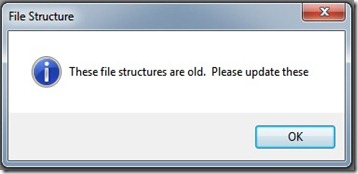
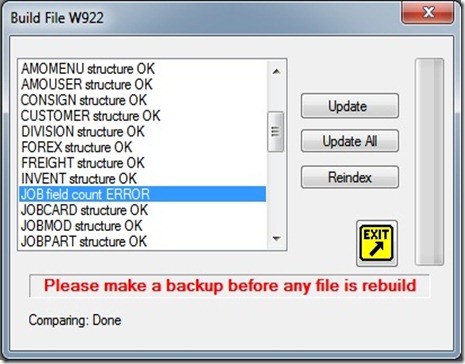
When the first user upgrades, ask all users to exit AMS. Relaunch AMS. If the file structures need updating, the program will display a warning. Select 'File Structure' and select each file that is not OK and press ‘Update’. When complete, Exit re launch AMS and select ‘Housekeeping - System - Data Files - Build Index’ and press ‘Start Indexing’.
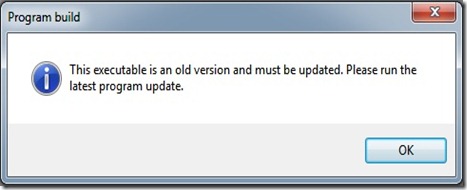
Once the first user has upgraded, the other users will be prompted to upgrade automatically when they next logon.
Reports
Download and save the file ‘SetupReports.exe’ and unzip to the ‘Q:\Data\Setams’ folder.
This upgrade includes various changes and fixes made over the past few months as well as report changes, which can be automatically downloaded directly from the ftp site from within the program.
There are currently two options for upgrading available to users.
1 Auto Upgrade:For those users with version 2.22.00 or later, open 'Housekeeping - Config Options - Company' and select 'Download Update'. A download window will open and the program will automatically download the latest upgrade file from the ftp site.
 This download window can be closed when complete or will auto close five seconds after completion. Later versions will offer to auto start the 'Setup.exe'.
If the program does not try to auto start the upgrade, exit and manually run Q:\Data\Setams\Setup.exe (where ‘Q’ is the default drive used for AMS installations. This might differ on some sites).
 To upgrade the report templates, open 'Housekeeping - Config Options - Company' and select 'Download Reports'. A download window will open and the program will automatically download the latest upgrade file from the ftp site. This download window can be closed when complete or will auto close five seconds after completion. Manually run Q:\Data\Setams\SetupReports.exe
 2 Manual Upgrade
For users on progran versions prior to v2.22.00 use the ftp site to bring the program up to date. This method of updating will be obsolute once all users upgraded to the latest version.
Download Site:
ftp://ftp.avdex.co.za AMS
The ftp username is avdexftp and the password is avdata
Download the ‘Setup.exe’ file to the Q:\Data\Setams folder. Run the ‘Setup.Exe’ on the first PC and follow the install instructions. It is important to save the installation file in this directory where all users can access the installation file.
Please remember to close AMS32 on your PC when running the setup. An error message most likely means that AMS32 is still open and cannot be over written.
Users not familiar with FTP sites could download from our online download site: Click Here and download the AMS installation file SetAMS.exe
 3 Implementation
When the first user upgrades, ask all users to exit AMS. Relaunch AMS. If the file structures need updating, the program will display a warning. Select 'File Structure' and select each file that is not OK and press ‘Update’. When complete, Exit re launch AMS and select ‘Housekeeping - System - Data Files - Build Index’ and press ‘Start Indexing’.

Once the first user has upgraded, the other users will be prompted to upgrade automatically when they next logon.

Reports
Download and save the file ‘SetupReports.exe’ and unzip to the ‘Q:\Data\Setams’ folder.
29 September 2010
T&T0014R1 - Mapped Drives for AMS
AMS32 and Status make use of 'Mapped Drives' when connecting to data and other folders. This is due to a number of reasons, not the least being a quirk in a report writer that does not see UNC drives. As a universal setup, AvData have used the drive letter 'Q' to denote the data directory for AMS and 'P' for WinStatus. (The new SQL version of Status does not require this definition) This aids trouble shooting in telephonic support as all AvData drives are 'Q' or 'P'.
When setting up a new PC on a network it is essential that the drive mapping be in place prior to first launching AMS or Status. When selecting the remote folder to 'Map', select the folder containing the 'Data' folder. ie the one above the data in the tree as shown by Windows. Both the report writers and the data files need to see a folder in the data drive. This means that the data drive cannot be 'Q' but must be 'Q:\Data'. As most installations on servers are done via a full installation, it is then easy to 'Map' the 'AMO' folder on the server as 'Q'.
Cleints making use of the 'Multi Data' facility must always have the same folders mapped in an identical manner as these paths are stored in a file on the server and will produce warnings if the program sees different paths to the 'Multi Data' folders.

Preferred method
- Click the Start button
- Right Click on My Computer
- Select Map Network drive…
- Enter the Drive (Q:)
- Browse and select the network folder
- Check Reconnect at logon
- Select Finish
The exact format of the window might differ between operatings systems.
15 September 2010
License renewal–Softkey update
The process of obtaining new softkeys for AMS users has been simplified and can be done online. When this done for the first time each site must obtain their site user id and site password from Aviation Databases. Users must also be using the latest executable as this feature was not available on older executables. Click here for upgrade information or visit our download server. Users must also have access to the internet for this option to work.
In AMS licenses must be obtained for each user or PC on the AMS system. Users must go to the waterfall menu options: Housekeeping | Config Options. This will open window W930. Select the License tab to display the online registration options.

Ensure that you enter your correct Client company ID as obtained from Aviation Databases for your site installation. Next enter your client password which is the same for all users in your company. Once this is done, the “Net Login” button will be available. Click this button to connect to the internet and obtain the softkey for your station.

The client data window will now open showing the registered programs with the program expiry dates. You can select the “Update” button to update your company address information on the network data base. The “Generate key” button will generate a new softkey on the PC. Close this window and return to window W930 where the new softkey will be displayed.
To register users must be using the current version of the program.
On stations without internet access, users can manually enter the softkey which can be provided manually from the PC ID as shown on W930. This softkey must be provided by Aviation Databases. Another option is to email Aviation Databases the Softkey.dbf file as found in the data directory, This option is also available on the backup window that can be found under the menu option: Housekeeping | System | Archive
Visit the AMS web site
26 September 2005
T&T2005R2–Shipment Number
As an aid to parts costing, the AMS32 program has a facility to add freight and import duties to an entire shipment received into AMS32.
As shipment costs are usually received later than the parts and invoice, users are able to apply a ‘Shipment’ number to a consignment or batch of consignments.
These can be sequential as the program shows the last ‘Shipment’ number in the receive window W506. It is advisable to write the ‘Shipment’ number on the invoice or invoices that are included in a given shipment.
Enter the number in the ‘Shipment’ field on window W506 for all parts received and related to that shipment.
When complete, go to window W505 (Transaction - Parts - Receive) and press ‘Allocate Costs’. This will open W533. Confirm the transaction date and enter the ‘Shipment’ number. Enter the total freight and duty costs (excluding VAT). Should there be and ‘Extra’ costs, enter them as well.
Press ‘Verify’ and the program will check the calculations and show a summary of the value that will be added to each part. Make sure that this is correct and press ‘Allocate’. This will add the EXACT shipment value to the stores value, thus making sure that the GRV is correct.
It is important that shipment dates match the GRV dates, linked to the shipment. During verify this is checked and there are two scenarios where the date differs. Should there only be one other date that differ from the shipment date, users will have the opportunity to correct the shipment date to the GRV transaction date. If there are multiple GRV’s with different dates, users have the option to set all the GRV dates to the shipment date.
If the shipment value is added subsequent to the printing of the original GRV, a new updated GRV MUST be printed as it now includes freight charges that do not appear on the original GRV.
As an added search function, parts related to either GRV or Shipment numbers can be checked by selecting ‘Tree Search’ in window W513 (Transactions - Parts - Edit - Tree Search) Enter the Grv or Shipment number and a summary of linked part numbers will be shown.
Aviation Databases can supply stamps which allow the entering of GRV, Shipment and AWB numbers as well as stamps to add incremental numbers to documents. Call for prices.
Subscribe to:
Posts (Atom)